How to test Firewall for AI feature
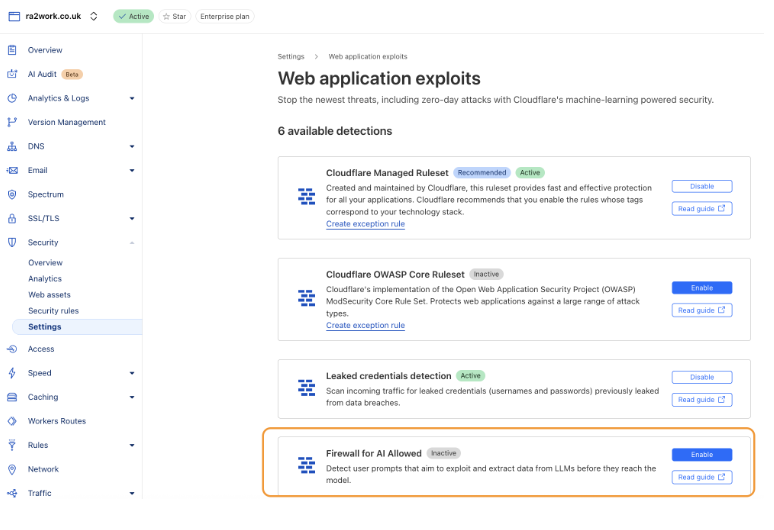
Step 1: Use the new Dashboard UI (note: it's also available in the old one but different UI)
How to test Firewall for AI feature
Step 1: Use the new Dashboard UI (note: it's also available in the old one but different UI)
Navigate to: Security > Settings > Web Attack exploits
Step 2.1 (optional): If needed, add a cf-llm endpoint
If no LLM endpoint has been discovered and you want to test, manually create one in API Shield/ web assets with the label cf-llm. For example:

Step 3: look at Security Analytics
In the new Security Analytics view:
You can filter traffic using the cf-llm label from Managed Endpoints Label. (only available in the new nav)
- You can filter traffic using the cf-llm label from Managed Endpoints Label. (only available in the new nav
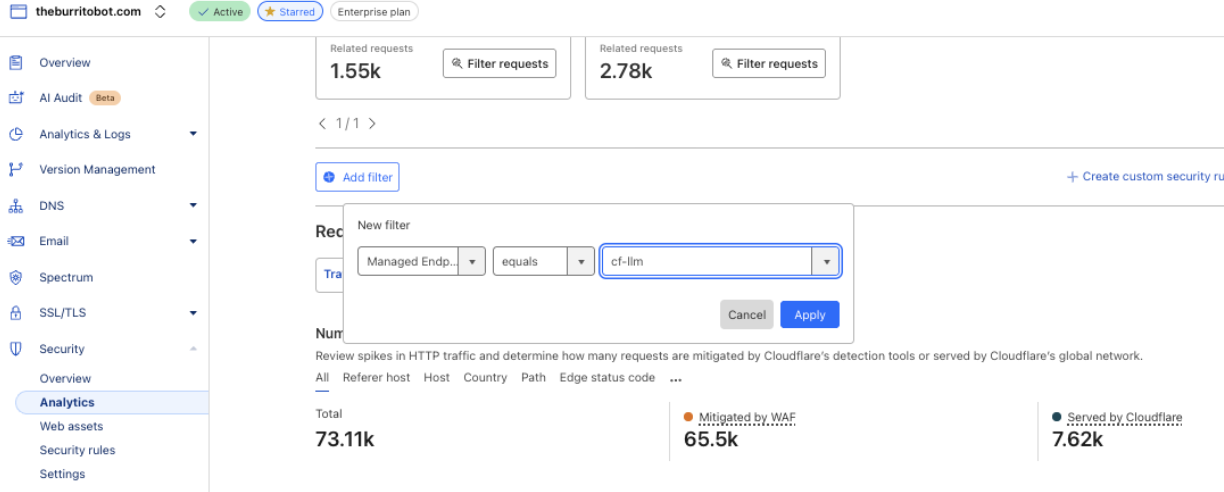
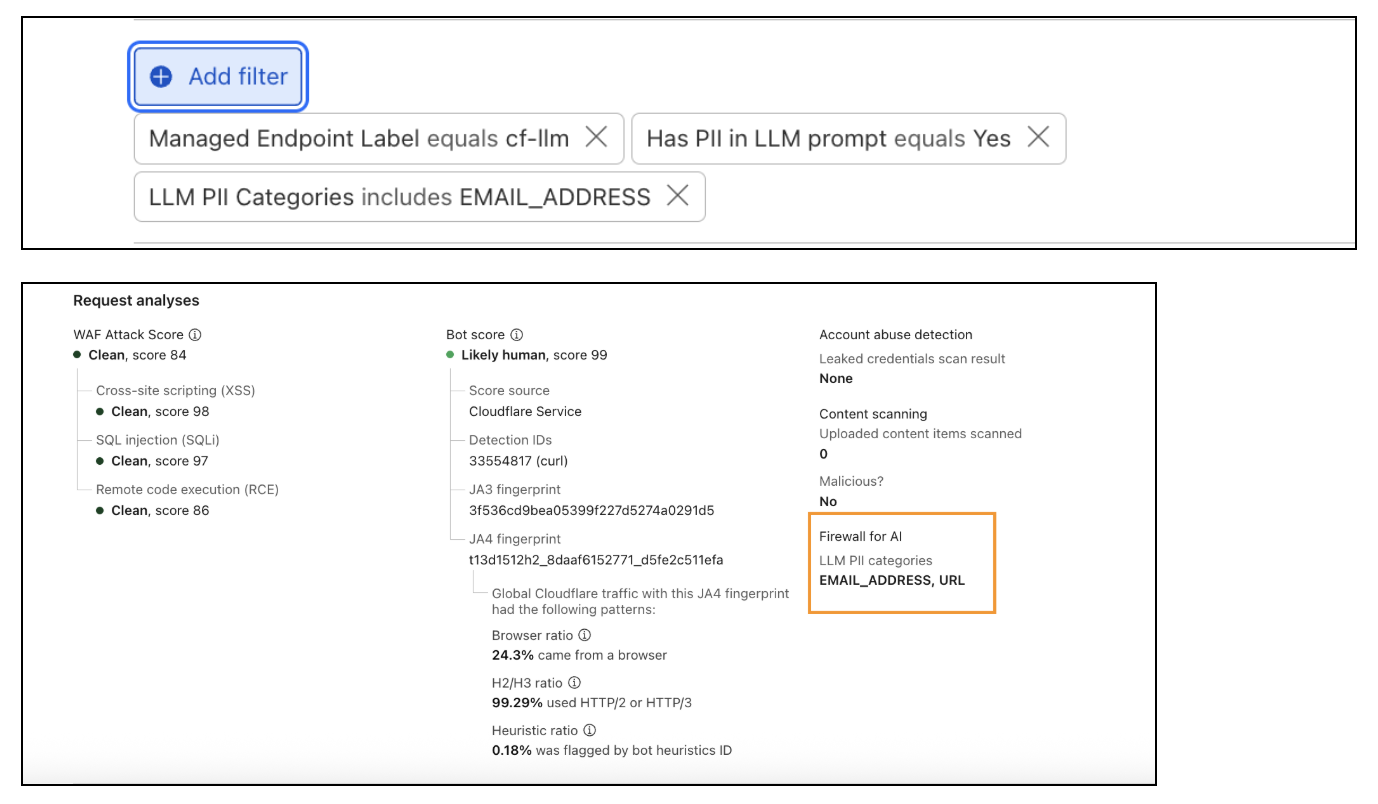
- You'll see fields for detected PII prompt data and associated PII categories.
- You'll see more data if you expand the sampled logs > Request Analyses.
Step 4: test that it's working
You can memic sending a prompt using the following curl command (replace theburritobot.com/test_firewall_ai with your zone and endpoint):
Basic Prompt (Triggers first rule):
**curl -X POST "[http://theburritobot.com/test_firewall_ai](http://theburritobot.com/test_firewall_ai)" -d "Testing the log rule of prompt found"**
PII Prompt (Triggers all 3 rules):
**curl -X POST "[http://theburritobot.com/test_firewall_ai](http://theburritobot.com/test_firewall_ai)" -d "Testing the log rule of prompt found"**
Step 5: deploy mitigation
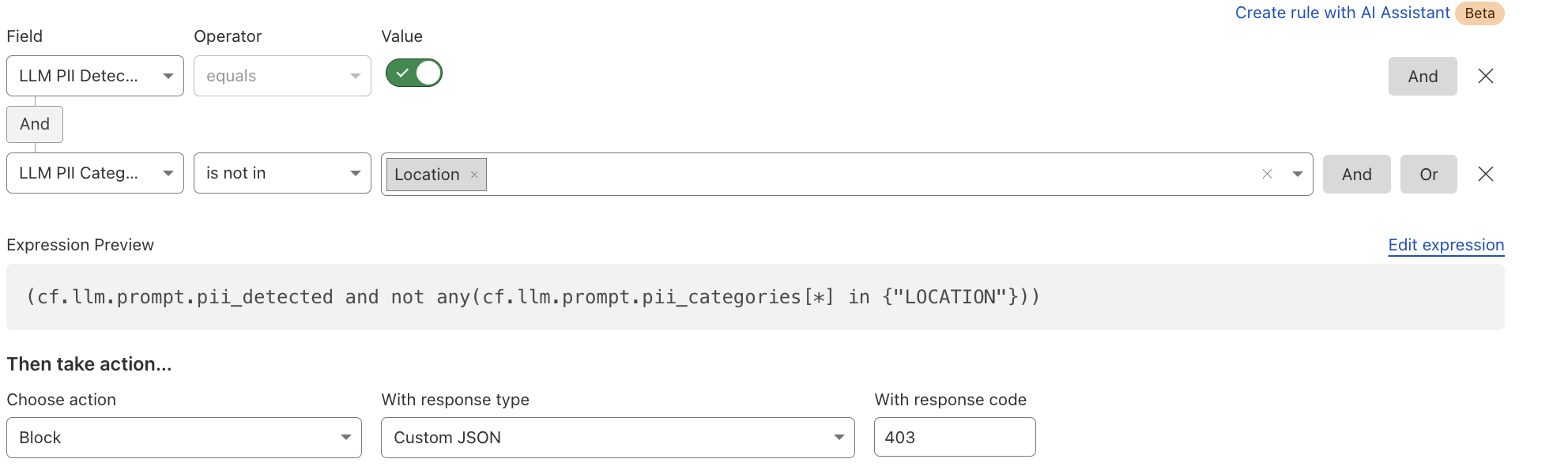
Adjust the log rules to take block action if you want to prevent certain prompts entirely (e.g., those containing PII).
Examples:
Block all prompts with PII
- Block all prompts with PII
- Block PII but allow specific categories (e.g., allow LOCATION)
How to test Firewall for AI feature
附件
- 📎 spaces-ER0NL5kECmloTHBH7PHC-uploads-9LAaZCgiHYvxsUc3KdIo-0.png (107 KB)
- 📎 spaces-ER0NL5kECmloTHBH7PHC-uploads-ELqQReOEqVAjJ1gIb0Bm-1.png (109 KB)
- 📎 spaces-ER0NL5kECmloTHBH7PHC-uploads-aKlHxfHH7dS0QqXk5Pdn-2.png (109 KB)
- 📎 spaces-ER0NL5kECmloTHBH7PHC-uploads-9BxRndq1RnquPirKR01e-3.png (178 KB)
- 📎 spaces-ER0NL5kECmloTHBH7PHC-uploads-0M1hFxe6CsRgCl6u67aK-4.png (61 KB)